Shares
How you make selected assets available to specific people — including external guests — with control over what they can see, download, and feed back on.
How you make selected assets available to specific people — including external guests — with control over what they can see, download, and feed back on.
A share makes a selected set of assets available to specific people. It’s how you get work in front of colleagues, partners, and outside reviewers without giving them the run of the whole project.
Pixwel also supports anonymous shares — shares that recipients can open without an account or sign-in. Because they let assets reach anyone with the link, creating one is a restricted capability: only users whose group has been granted the anonymous-share permission can make them.
Anonymous sharing is permission-gated. If you don’t see the option, your group hasn’t been granted it — an administrator controls who can create anonymous shares.
When you build a share, you decide what recipients can actually do:
Previews shown to recipients are watermarked with the viewer’s email address.
A share can collect feedback. Recipients can vote an asset up or down, leave comments, and indicate whether they’d order a localized version — useful for gauging interest before committing to localization work. You can attach questions recipients answer before submitting, and set a date when feedback closes. Results feed the feedback report.
You assemble a share in the Share Queue — a staging area where you collect assets, choose recipients, set languages, usages, and feedback options, then send. Until you send it, nothing leaves the platform.
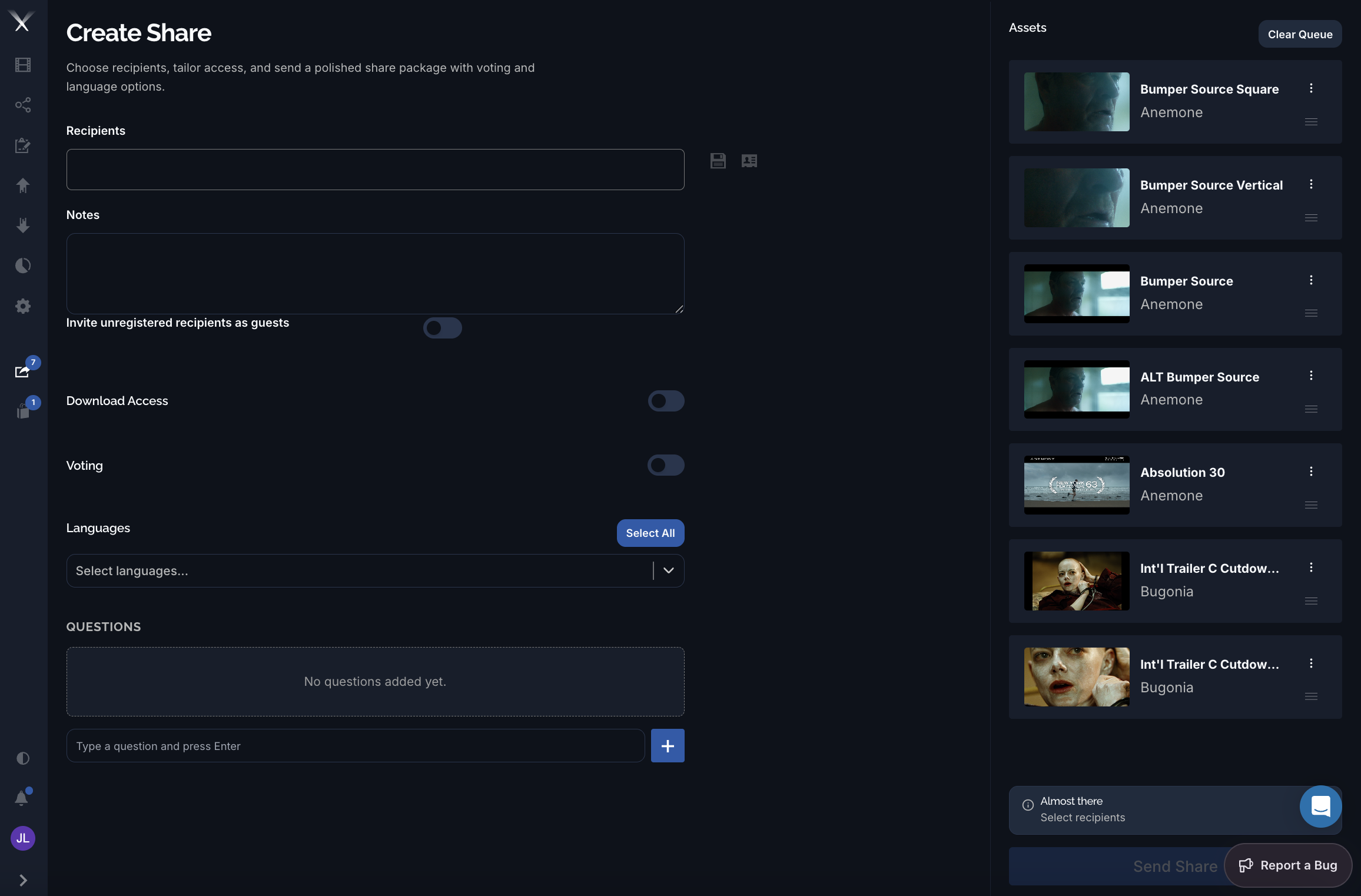
On the Create Share page you set the recipients and a note, then tailor access with toggles: Invite unregistered recipients as guests, Download Access, and Voting. Pick the Languages to include, and add any Questions recipients should answer. The queued assets appear in the Assets panel on the right — reorder or remove them, or Clear Queue to start over — and Send Share dispatches the package once you’ve chosen recipients.
Shares you’ve created appear under Sent Shares; shares others have sent you appear under Received Shares. You can edit a sent share’s recipients, notes, and settings after it goes out.
Sharing is permission-controlled. What you’re allowed to share, and whether recipients can download, depends on your group’s permissions — an administrator sets these.