Placing & Managing Orders
How to place a work request, choose deliverables and tags, track it through its stages, and update it after submission.
How to place a work request, choose deliverables and tags, track it through its stages, and update it after submission.
A work request (an order) is how you ask for localized versions of an asset. This guide covers placing one, choosing what gets made, and managing it through to delivery. For subtitling and translation tools, see Subtitling & translation.
Find the asset in your preferred language and click Order Localized Version at the bottom-right of the preview. An Order Queue opens in the notification bar — add as many assets as you need before processing them together.
Queued items show on the left with the current asset highlighted (your previous settings carry over). Set language and territory, the dialogue / narration / graphics options, the deadline, tags, and other details. The platform won’t let you submit until required fields are filled.
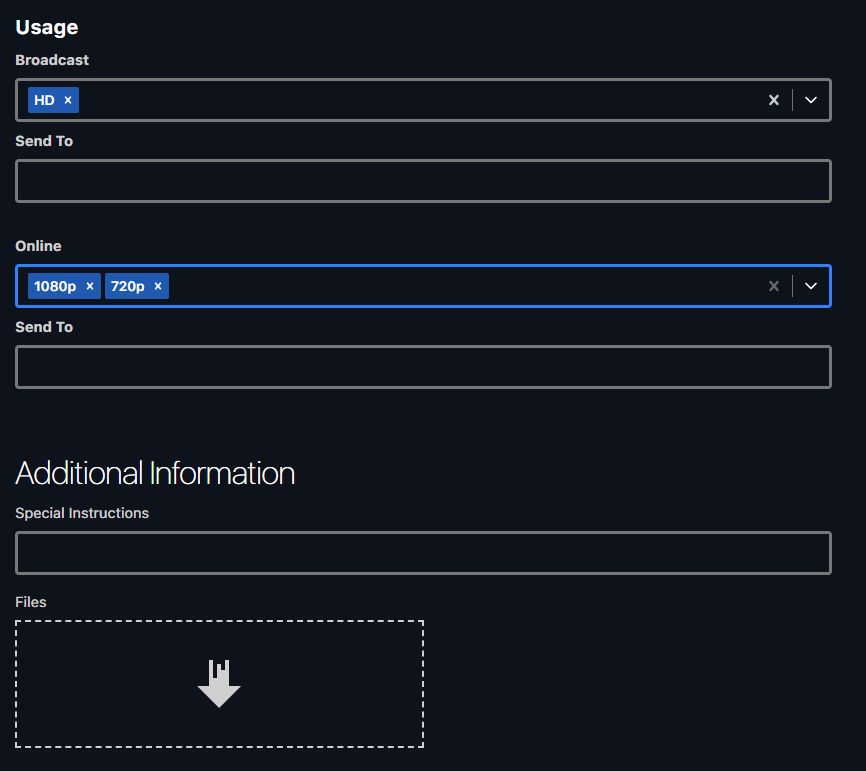
Select the file formats you need (see Choosing encodes). If an outside party needs the finished files, add them in the Send To field.
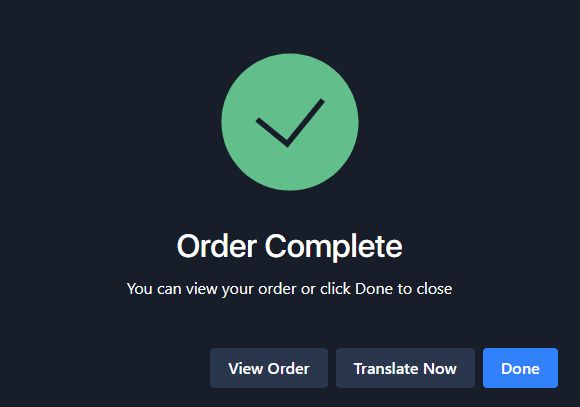
Review everything and click Place Order. If the order is subtitled, you can use the built-in translation tool now or defer translations (which may delay the order).

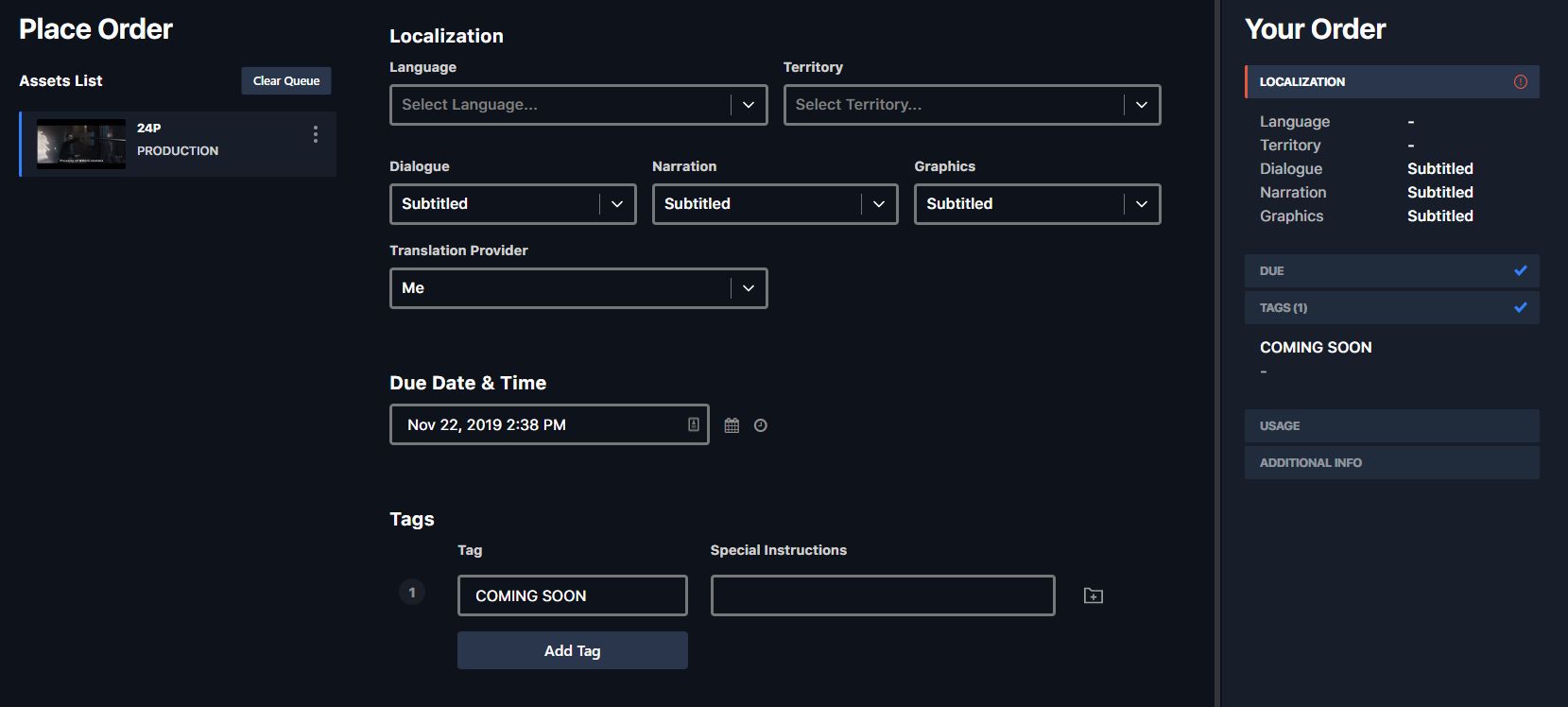
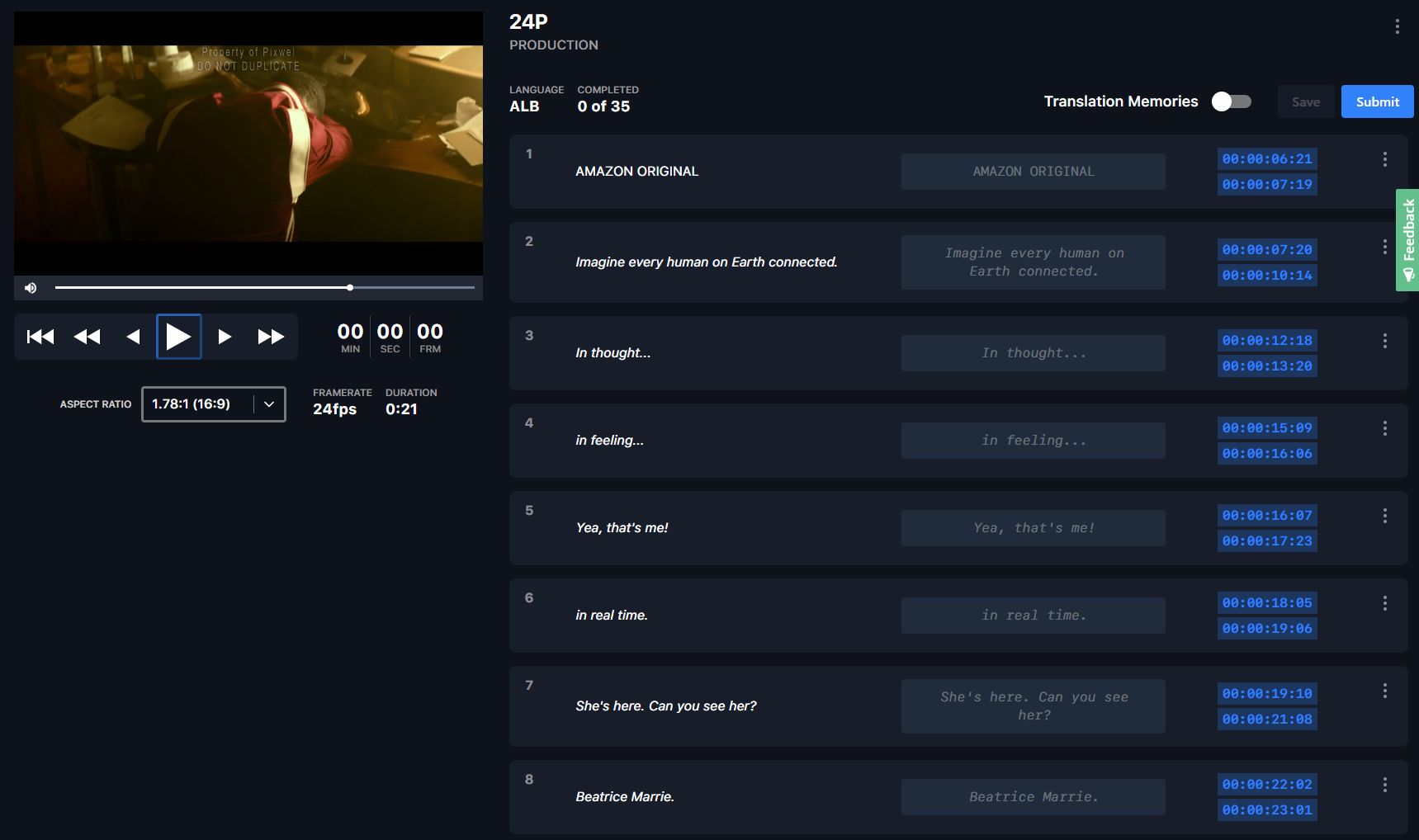
Deadlines can’t be set sooner than 24 hours out — this gives vendors a realistic turnaround. If you need it faster, arrange an expedited timeline directly with your vendor.
Pick deliverables by clicking a category and selecting one or more files — only what you select gets created.
| Category | Options | Typical choice |
|---|---|---|
| Broadcast | HD, SD 4:3, SD 16:9 | HD in most cases |
| Online | 1080p, 720p, 480p, 360p | 1080p in most cases |
| Square | 1080p | — |
| Vertical | 1920p | — |
| 4x5 | 1350p | — |
Only files selected from these options are created. Files requested in special instructions are not made. 1080p online files are fine for YouTube, Facebook, etc. — special social-network encodes aren’t necessary.
Every order needs at least one tag — even for a single version. Tag names are built into the final file names, so deliverables are easy to identify.
COMING SOON tag).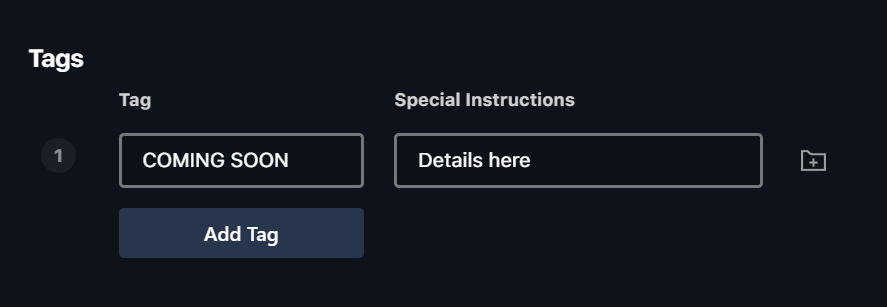
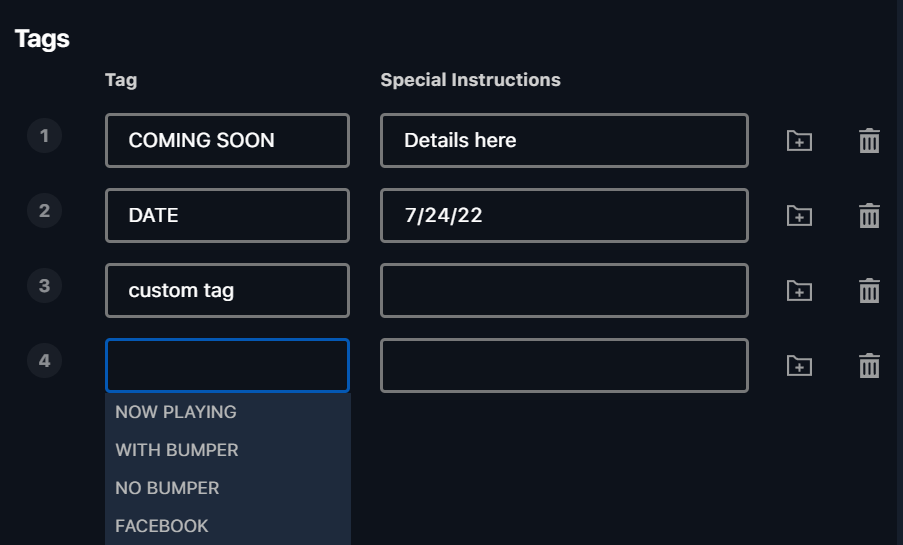
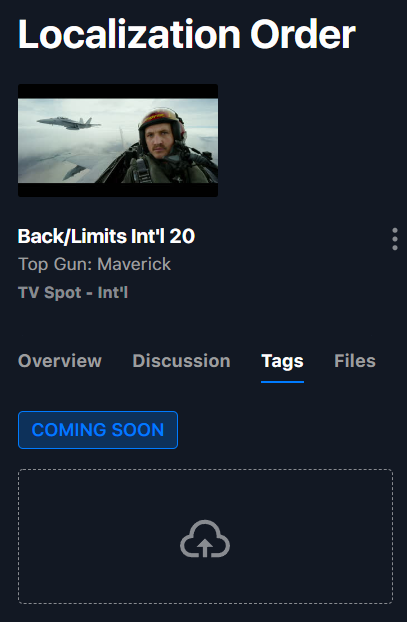
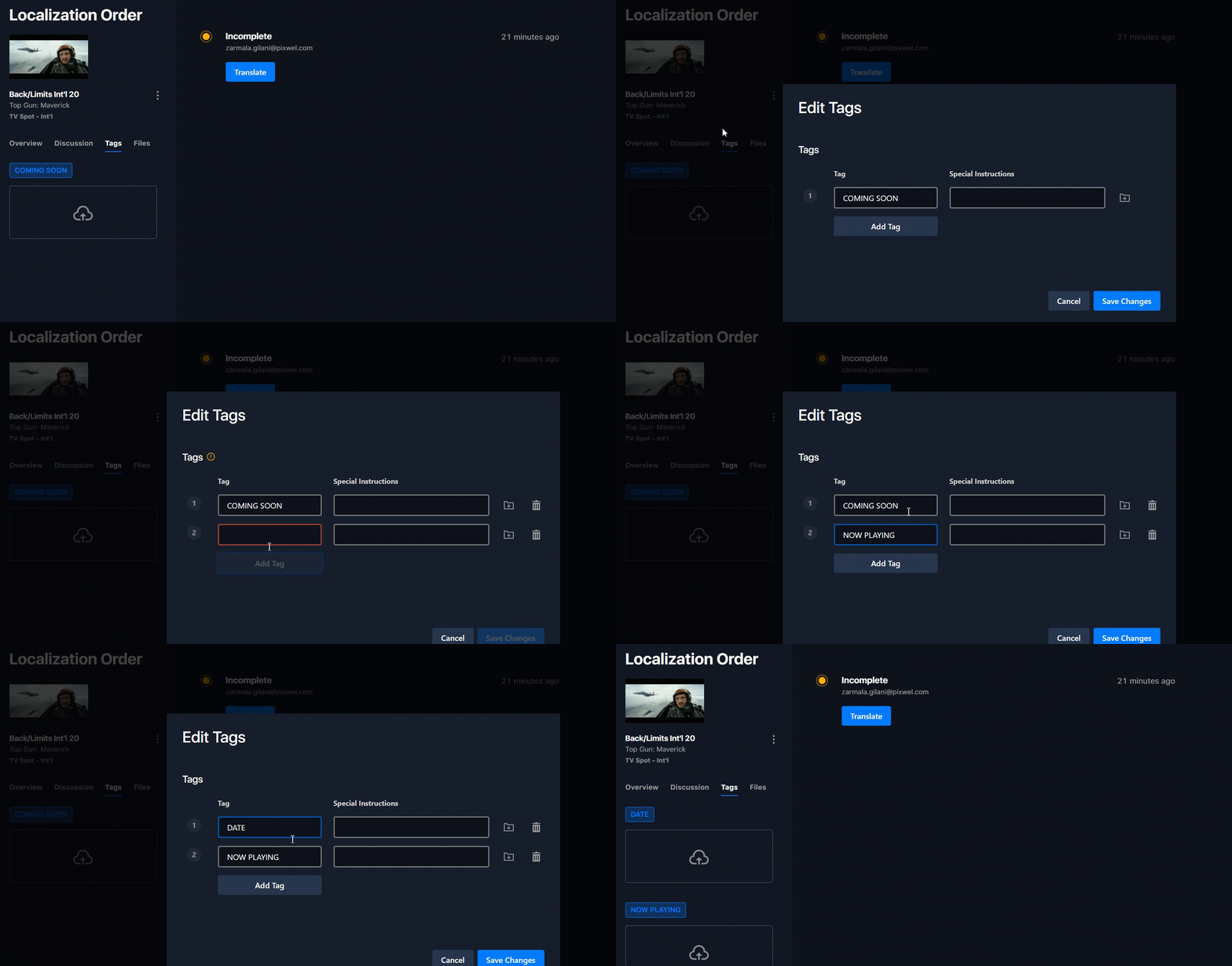
Don’t request tags in Special Instructions — tags requested there won’t be actioned.
Choosing Dedicated / Localized (rather than subtitled or OV) means a fully localized deliverable:
The result looks natively produced for the target audience.
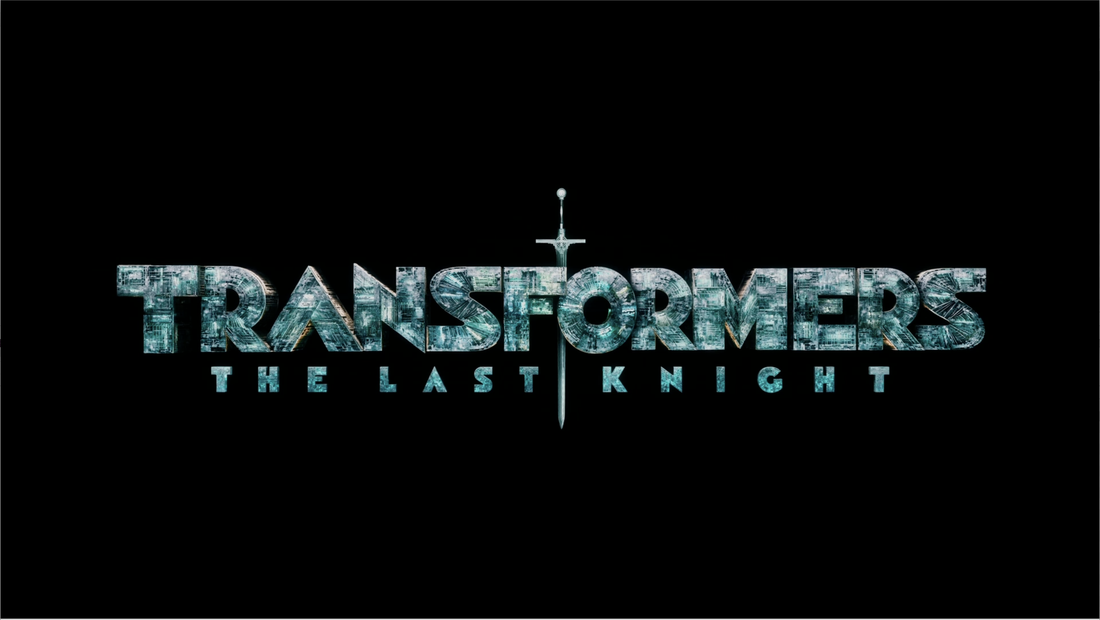
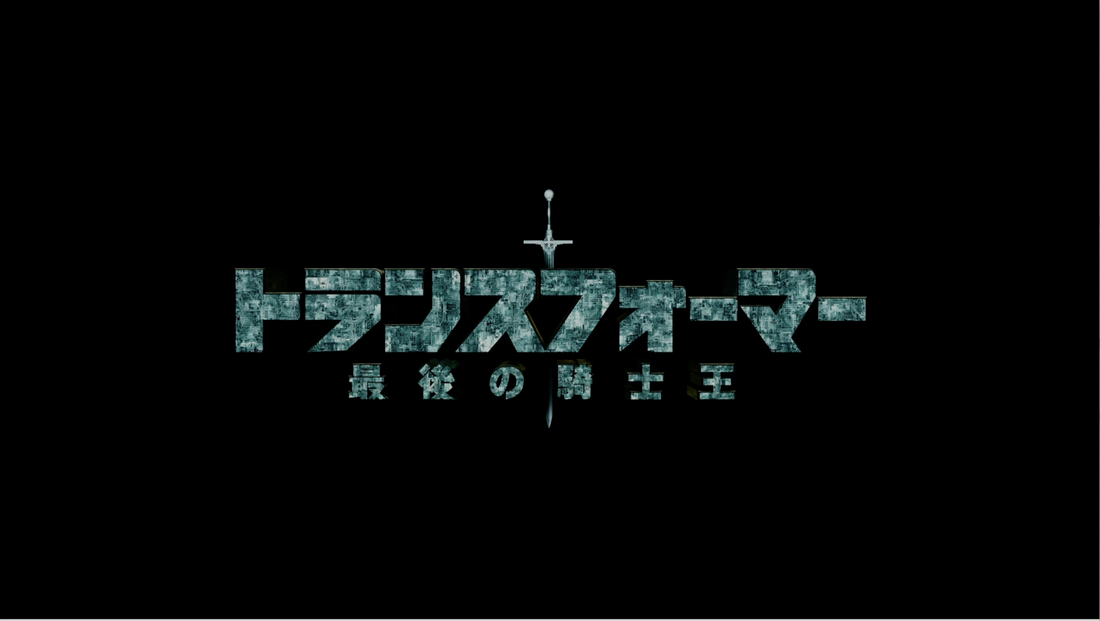
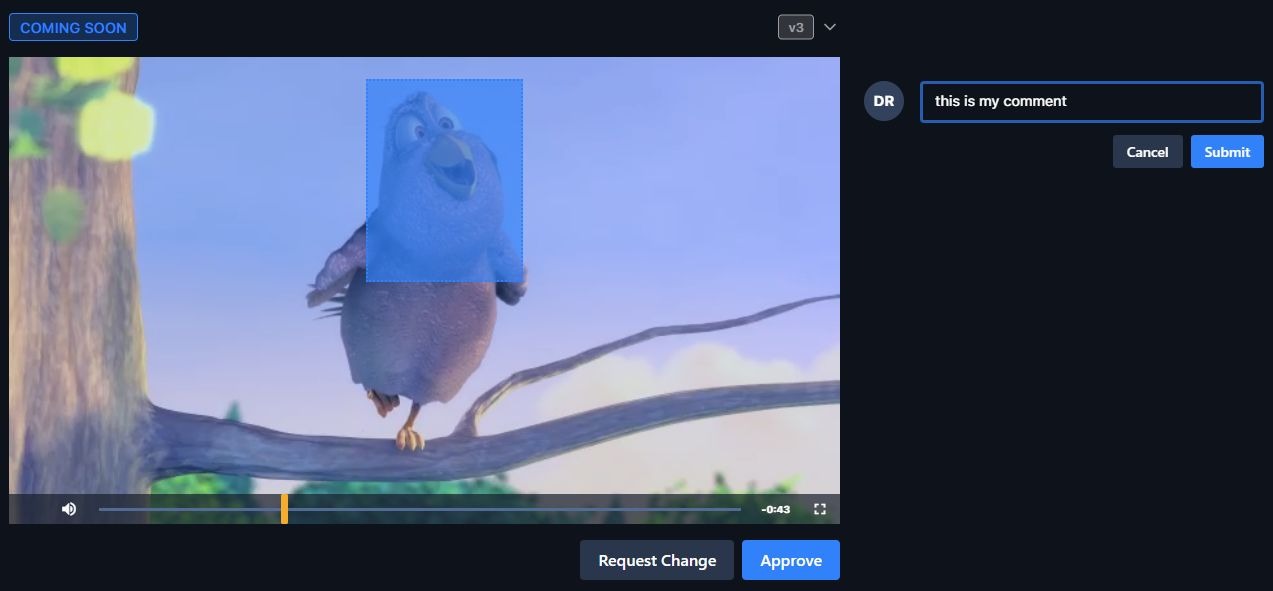
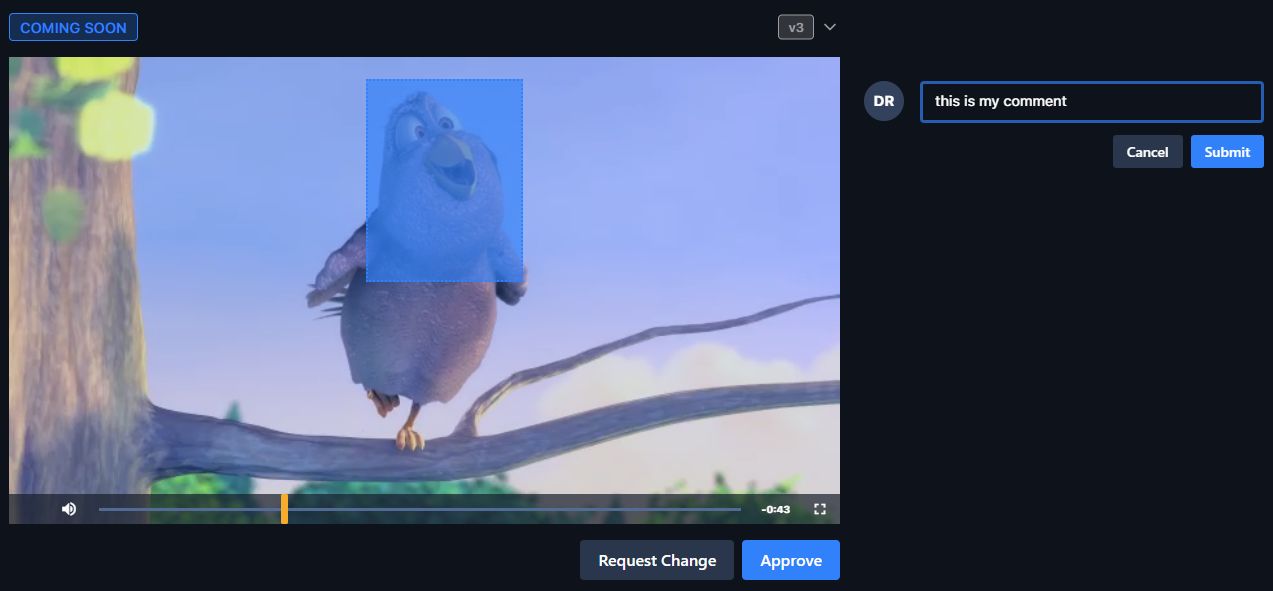
Two places to give feedback:
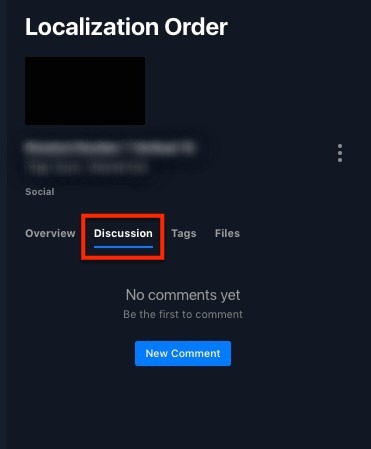
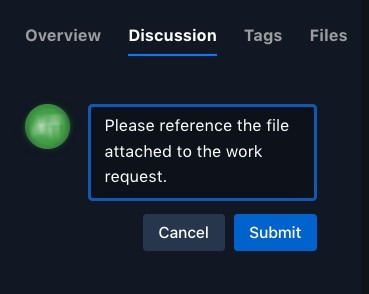
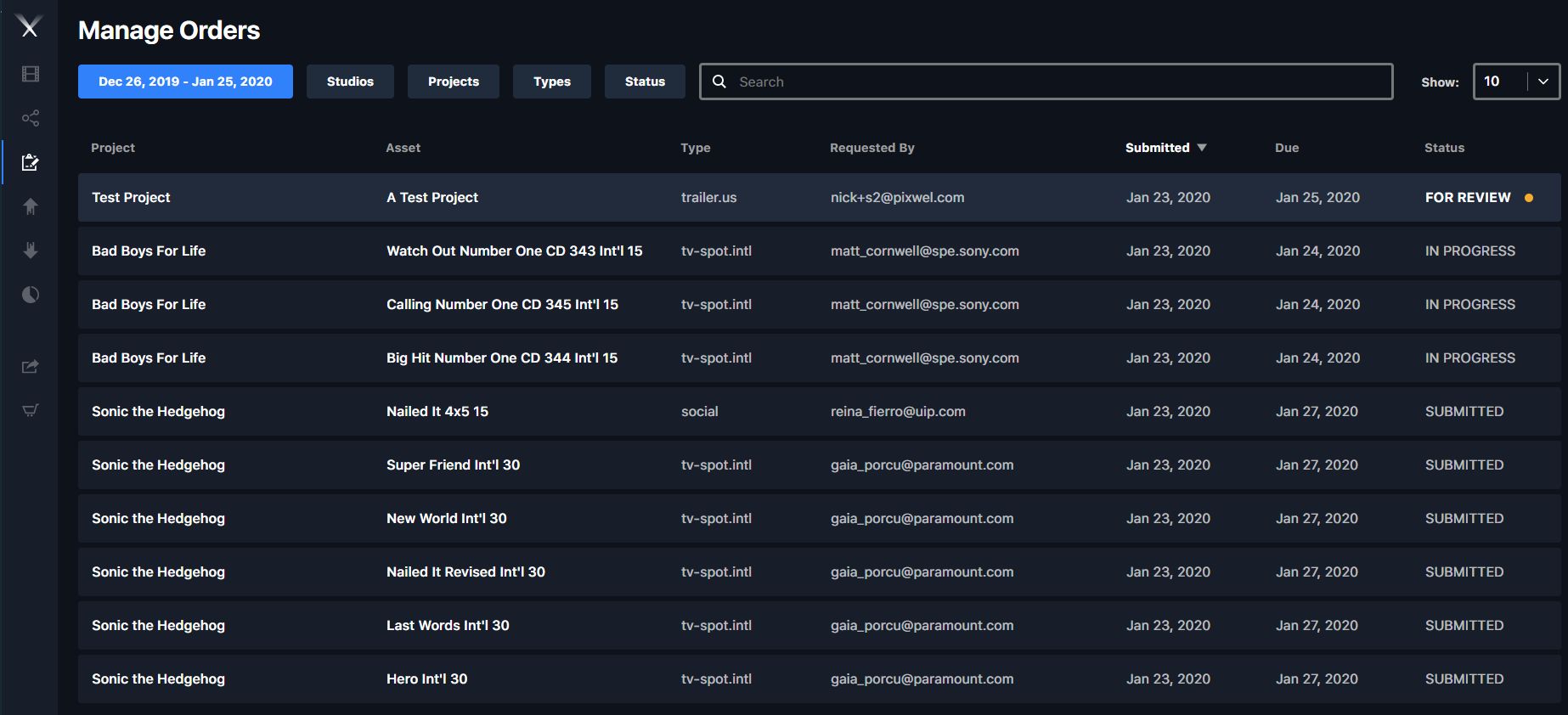
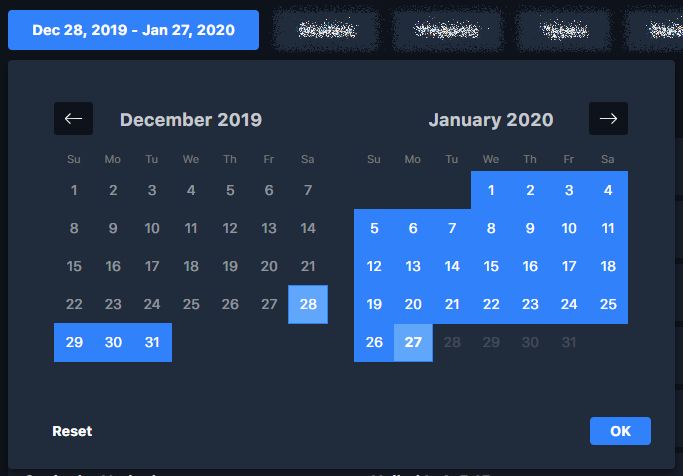
Open Manage Work Requests from the side toolbar. By default it shows the last 30 days; switch between your own and My Group(s) requests, filter by project/asset type/status, adjust the date range, and search.
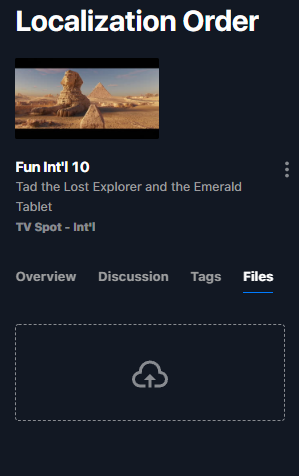
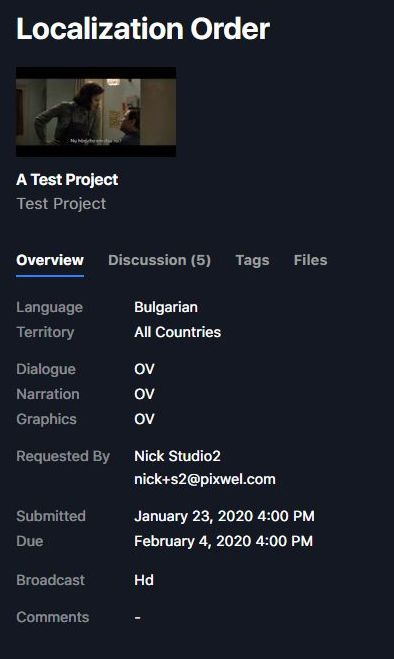
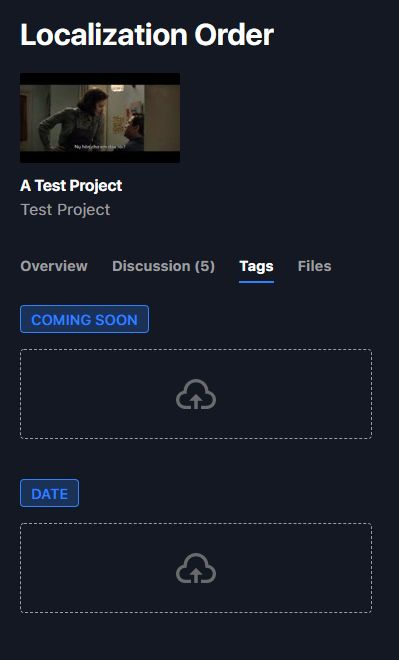
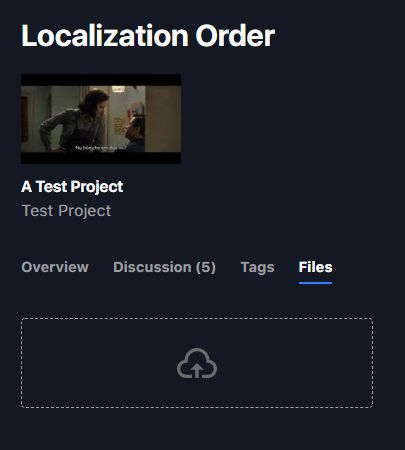
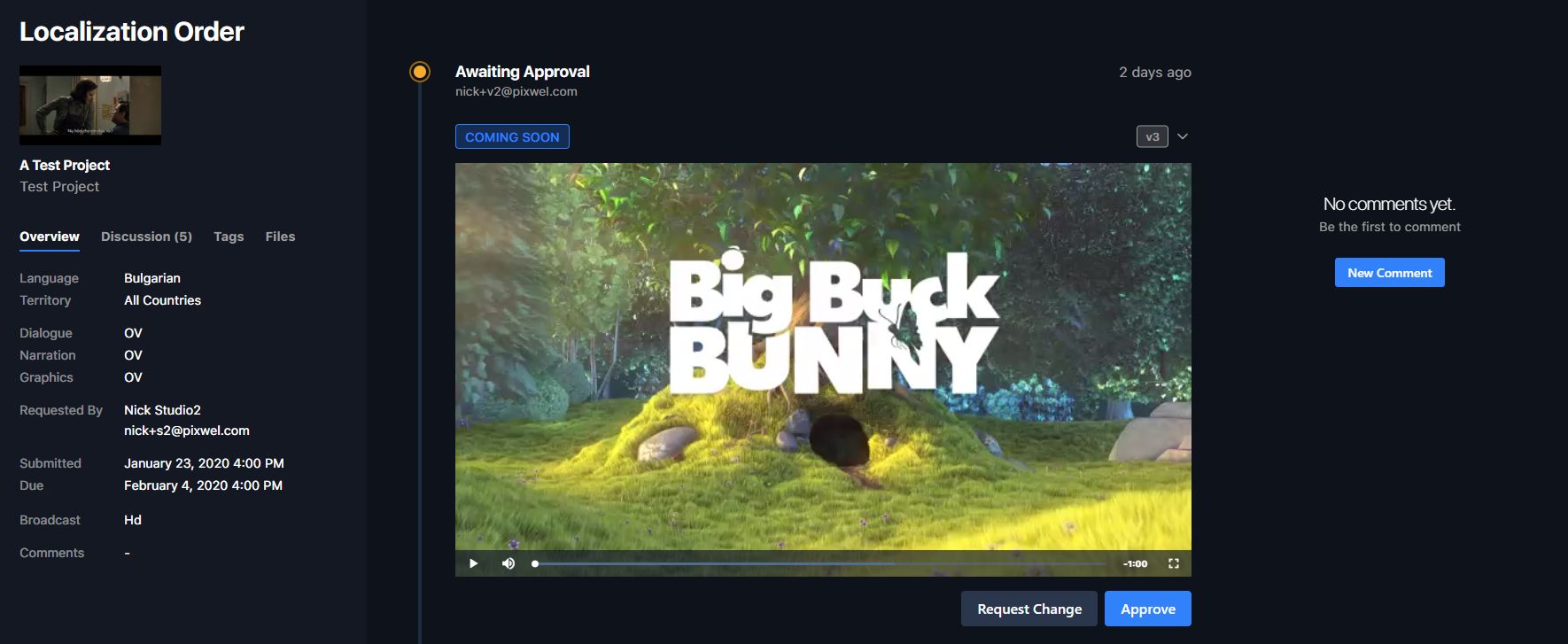
Opening an order gives you four tabs:
| Tab | What it’s for |
|---|---|
| Overview | All order details. |
| Discussion | General comments with the vendor. |
| Tags | Upload files for individual tags (localized narration, custom graphics). |
| Files | Upload vendor resources not tied to a specific tag. |
A timeline shows production status. When an order reaches Awaiting Approval, you can preview each offline and approve or comment.



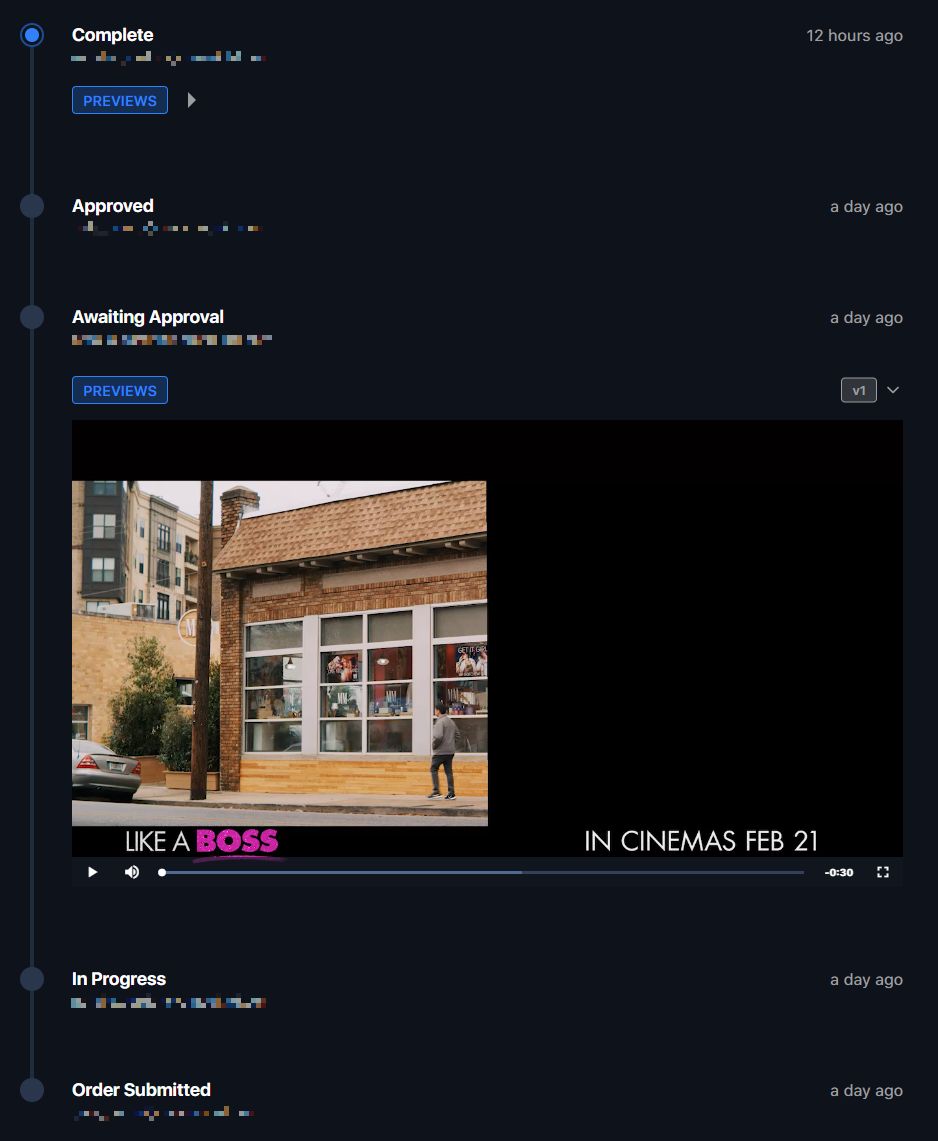
A work request moves through these statuses (see also Work Requests):
| Status | Meaning |
|---|---|
| Cancelled | The user cancelled the order. |
| Incomplete | Submitted but missing something — usually subtitle translations. |
| Order Submitted | Successfully submitted to the vendor. |
| Awaiting Materials | The vendor has the order but needs more material/info from the territory before starting. |
| In Progress | The vendor has started work. |
| Translation Approved | A territory user approved the assigned translator’s translations. |
| Awaiting Approval | The vendor uploaded a checker (offline) for review. |
| Approved | The user approved the preview. |
| Rejected | The user rejected the preview and asked for changes. |
| Complete | The vendor delivered the localized master(s). |
Edit an order from the ⋮ menu next to the spot’s thumbnail in the work request. What you can change depends on status:
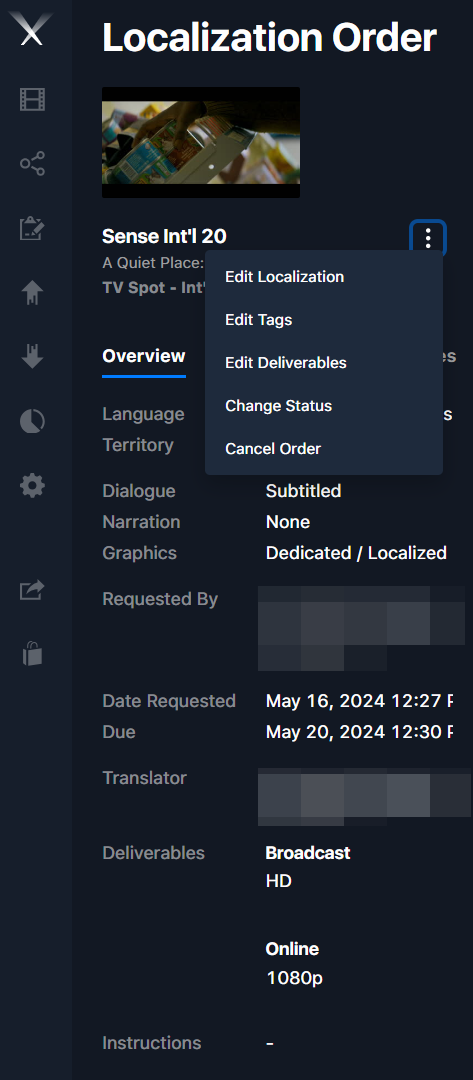
| Status | What you can change |
|---|---|
| Incomplete / Submitted | Everything, until the vendor acknowledges it. |
| In Progress | Only tags and deliverables; localization changes need the vendor to revert it. |
| Awaiting Approval | Only existing tags and deliverables; major changes need vendor reversion. |
| Approved / Complete | Nothing — place a new order for additional needs. |
| Cancelled | Nothing — cancellation can’t be reversed; place a new order. |
Major changes to dialogue, narration, graphics, or translations always require the vendor to revert the request manually.
When the vendor marks the order Complete, you get an in-app notification (and an email, if you’ve opted in). The platform then needs 60–90+ minutes to generate all deliverables, depending on file size and system load. Once ready, download them from the work request or the asset page.