Permissions
The Admin Dashboard Permissions tab — granting capabilities to groups and users, scoped by studio, project, territory, language, and usage.
The Admin Dashboard Permissions tab — granting capabilities to groups and users, scoped by studio, project, territory, language, and usage.
The Permissions tab on the Admin Dashboard is where capabilities are granted to a group or user, scoped down to exactly the assets, regions, and usages they should apply to.
Unlike the standard list tabs, Permissions uses a custom layout: toggle between Users and Groups, search and pick one from the list on the left, then view and edit the permission grants attached to it on the right. Each grant shows the project or asset it covers, the asset Types it includes, and the Access capabilities it allows, with Duplicate, Edit, and Delete actions.
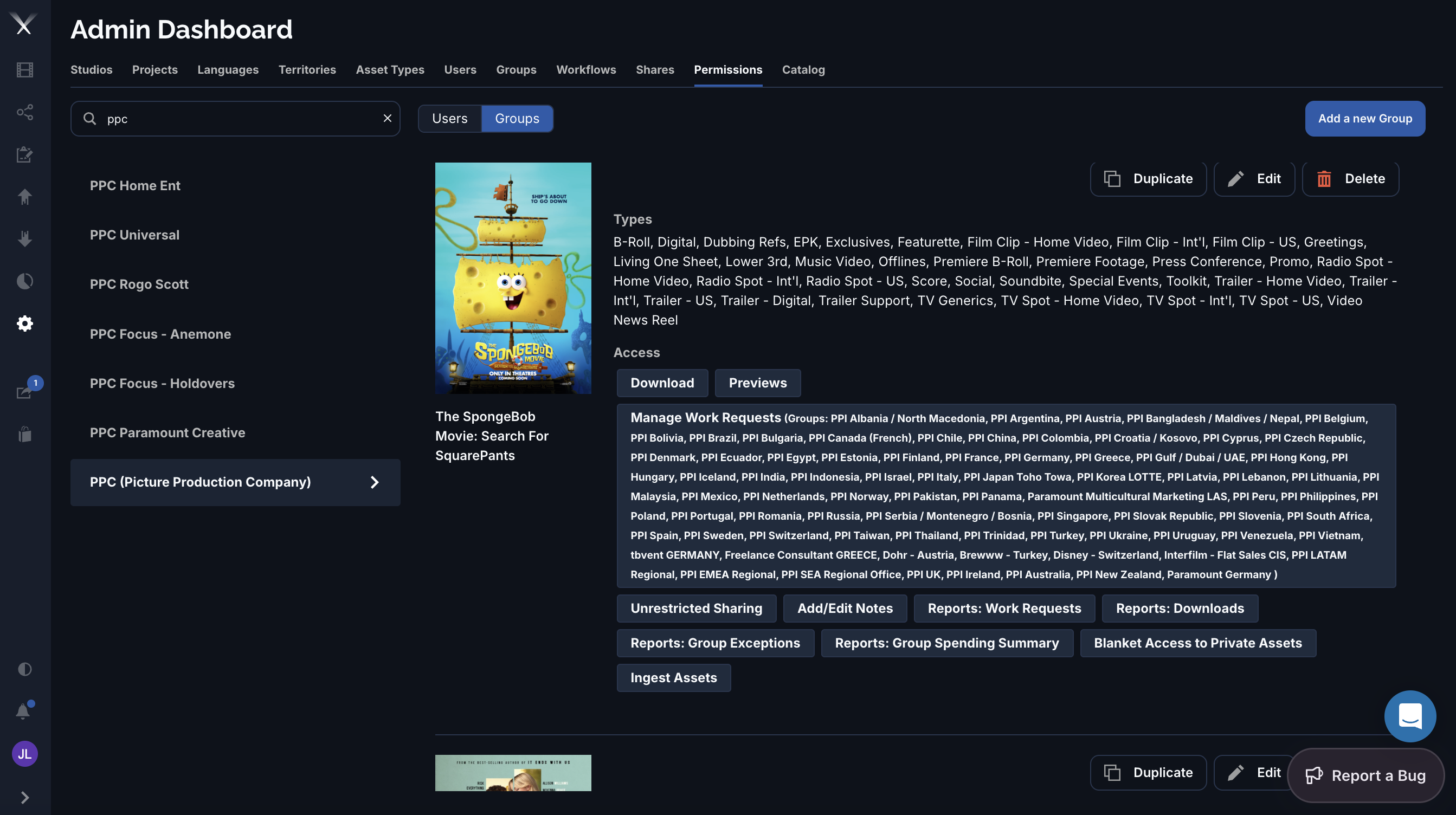
Each grant has three parts: who it’s for, what it applies to, and which capabilities it allows.
| Scope | Meaning |
|---|---|
| Studio | The studio the grant applies within. With no project set, it covers all of the studio’s projects. |
| Project | An optional single project to narrow the grant to. |
| Asset types or Assets | Either whole asset types or specific assets. |
| Tags | Optional tags to filter which files are covered. |
| Creative state | Whether the grant covers final (finished) files, unfinished creative, or any. |
Many capabilities can be narrowed further by source — constraining them to specific countries, languages, and localization types (OV, dedicated, subtitled).
Capabilities appear as toggle chips under Access. The labels you’ll see include:
A grant also lists its covered Types — the asset types (B-Roll, Trailer — Int’l, TV Spot — US, and so on) it applies to.
A permission grant must be approved to take effect. Grants can also expire, after which they no longer apply.